Act of Parliament/Subsidiary Legislation
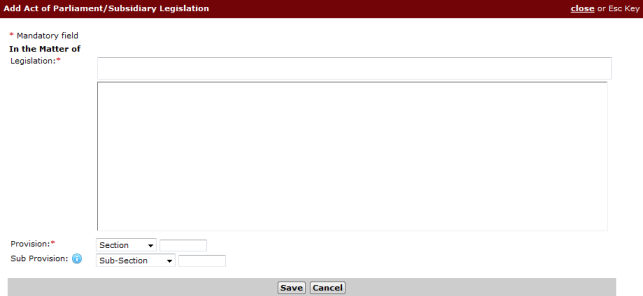
Click Add to add the Act of Parliament/Subsidiary Legislation.
Add Act of Parliament/Subsidiary Legislation Page
Enter a Legislation keyword in the In the Matter of Legislation field. Upon entering the keyword, corresponding matches will be displayed in the list box below. Select the Legislation to be added.
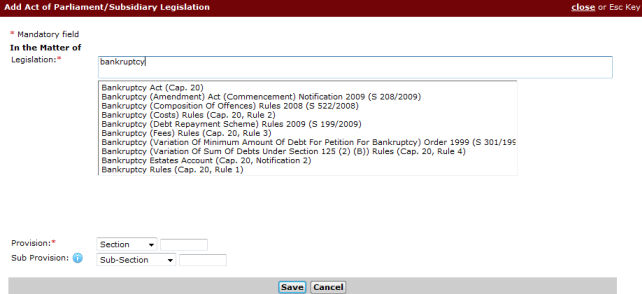
In the Matter of Legislation Field
Select the type of Provision and Sub Provision from the dropdown lists and then enter the specific Provision and Sub Provision numbers in the respective fields.
The user can select from the following types of Provision and Sub Provision:
Appendix
Article
Order
Paragraph
Part
Regulation
Rule
Schedule
Section
Click Save. The Legislation is now added to the Act of Parliament/Subsidiary Legislation list.

Act of Parliament/Subsidiary Legislation List
|
Click Add to add more Act of Parliament/Subsidiary Legislation on the list.
If there is more than one Act of Parliament/Subsidiary Legislation, select the button to specify which one is the Main Claim.
To remove an entry, mark the corresponding checkbox and then click Delete. |
|
If there are Other matters to be added, enter information in the In the matter of Field.
|
Nature of Case
Click Add to add the Nature of Case category. The Nature of Case window will be displayed.
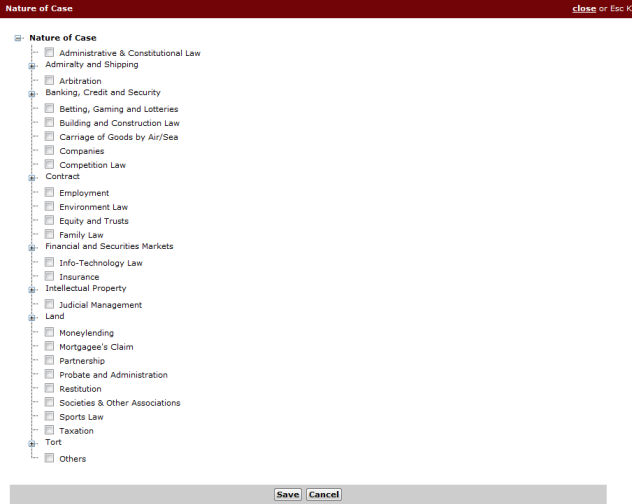
Nature of Case Window
Mark the relevant Nature of Case checkbox and then click Save. The selected Nature of Case will be displayed on the Nature of Case list.

Nature of Case
|
The user may add up to 10 Nature of Case categories. Click Add to add more Nature of Case categories to the list. If there is more than one Nature of Case category, mark the button that specifies which category is the Main Claim. To delete an entry, mark the corresponding checkbox and then click Delete. |
Select/Enter information in the rest of the questions on the page.
|
Additional fields may be displayed depending on the selections made by the user. |
Click Next. The Step 2: Form Page will be displayed.

